My intention for this short book was to inspire my students to create their own books about what they have been doing since not being in school. I would like my students to use Book Creator to make their own digital picture book about what they have been up to and share it with their peers so they can al stay connected. A huge part of school is being social and interacting with your peers. COVID19 has made this much more difficult, but I think that this could be a great project to let kids be creative, implement some reading and writing, and let them feel more connected with their friends. Afterwards, I would like to have them write mini book reports on each other’s books! I really enjoyed using Book Creator, so much so that I am actually using it with students. I think that I will continue to refine my craft and start making this something I will implement into my class!
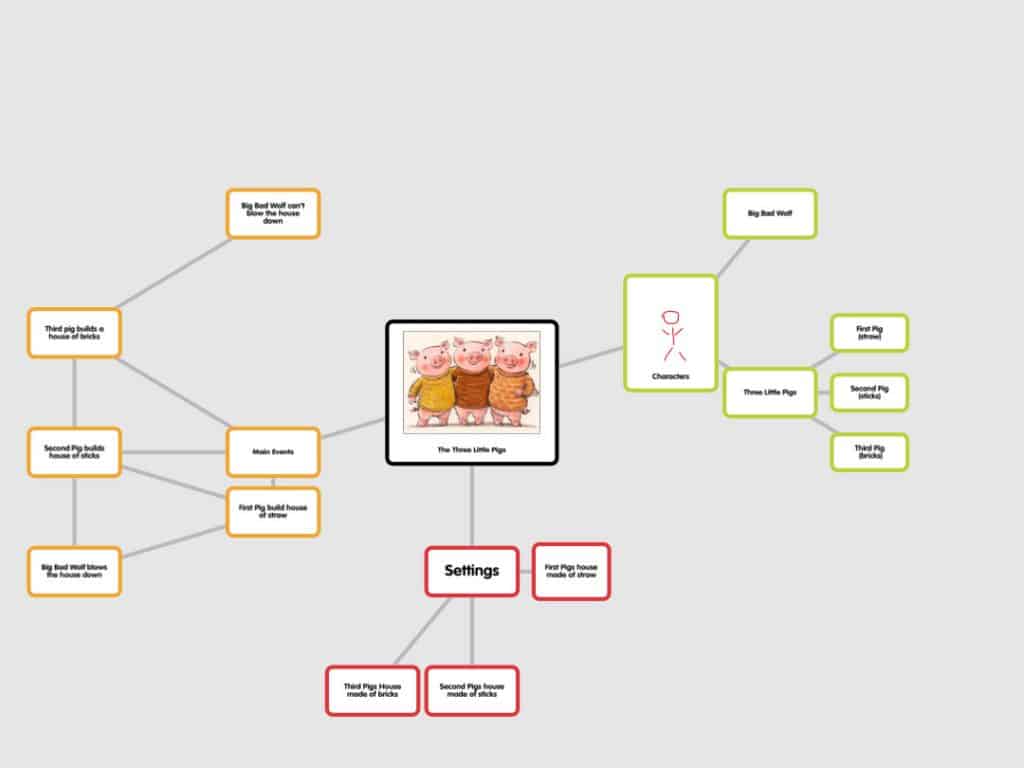
The two apps that I tried this week was Popplet and Wakelet. Popplet is an app, that you can access on an Ipad, and can be accessed on a website. I tried using Popplet on an Ipad and accessing it on the website. Popplet is a useful tool that creates mindmaps that can put visuals to content being taught. The app was easy to use because all you had to do was double tap on the screen to get a new box. You can also drag a line to connect a box to anything. Within a box you can add a picture of a drawing to help make it even more visual. You can also share a Popplet between collaborators, so that multiple people can work on the same Popplet and contribute ideas. However, there are two things that I did not like about Popplet. One was that it is a little difficult to insert pictures into Popplet. If you want to insert a picture, then you have to find it on the internet, download it, and then go into the Popplet app to choose it. The second thing that I didn’t like about Popplet was that you couldn’t go back and forth between the app and the website. On the website it required you to sign in, but on the app there was no way to sign in, so there was no way to access what I did on either of the devices. Overall, I think that it is something that can let students connect visual items to concepts, but it can be hard to do so.
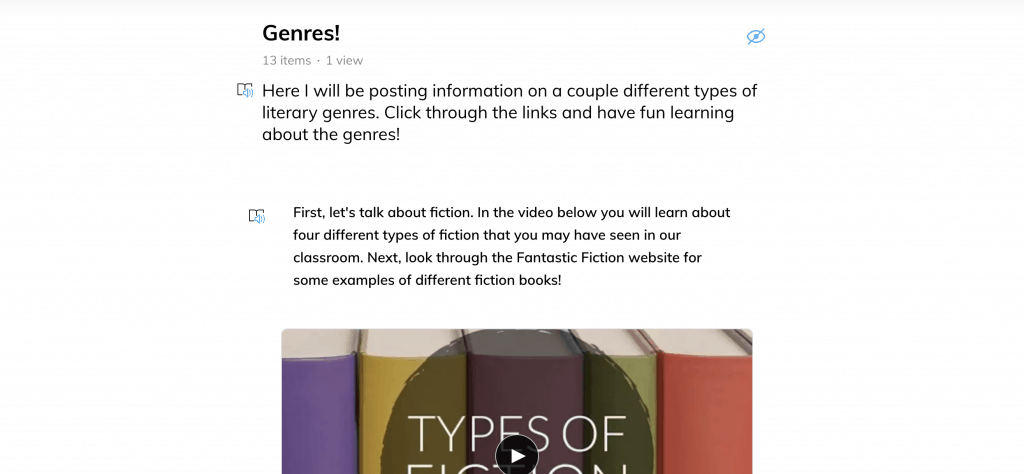
The second app that explored was Wakelet. Wakelet is accessible through their website. It allows you to pull in media, like images, youtube videos, and websites, to make a comprehensive “board”. I enjoyed how easy this website was to use, for it allowed you to search for copyright free images on unsplash and you could search the web/youtube for anything you might want to include. You were also able to share it with collaborators, so that multiple people could add their own ideas to on Wakelet. I believe that this website is a much better tool to use that Popplet because it was much easier to add media onto my work. It was also able to search multiple types of media; which made searching for things very efficient. In terms of students use, students could collaborate with each other to make a comprehensive media list of videos/websites that other students should view on topics of their choosing. This could also help students with learning what media is the most reliable when putting together a presentation. As teacher, I think that I could use Wakelet to provide further enrichment to students who may need extra instruction in the form of videos and websites. Overall, I really enjoyed using Wakelet, due to the ease of use and the several ways that students could use it to enhance their own learning visually.
For this project, I decided to compare Padlet and Popplet by creating little infographics and timelines about the weather in the Willamette Valley here in Oregon. On Padlet I created a timeline that shows how the rainfall and temperatures change over time by month. I really like how Padlet gives you so many options in regard to format. Everything was user friendly, and it seemed like it had a pretty easy learning curve to it! On Popplet I made a mind map or a web using the same information about the Willamette Valley. I thought Popplet was another really user friendly app! I Ike how you can show your thinking with the web-like feature, and i think his could be a really great tool to be used in the classroom. I did notice that it seemed to be very finicky and sensitive when you are trying to create a new box, but it was overall a great experience and a great way to organize your thinking, whereas Padlet was a better way to demonstrate your thinking. In the end, I think I will use both apps in the future!
For this lesson, I whipped up a quick example in both Webjets and Wakelet of a young students lesson on how to classify animals based on what they eat. While Webjets was okay, I absolutely loved Wakelet! I was judging based on ease of use for both teacher and student, ability to add different forms of content, and overall easiness to navigate. Webjets looks cute with the style of a bulletin board, but creating “cards” was super tedious. Plus the website wasn’t as user friendly. Wakelet is pretty, super easy to use, and allows easy addition of outside content. It actually reminded me a lot of a google form. I think it was easy enough that kids could use it to make projects like animal reports, book reports, or science research.
I also couldn’t figure out how to make the HTML Snippet of the Wakelet page smaller or how to do a Snippet for Webjet. I’m not very tech savy, all the more reason I liked Wakelet!
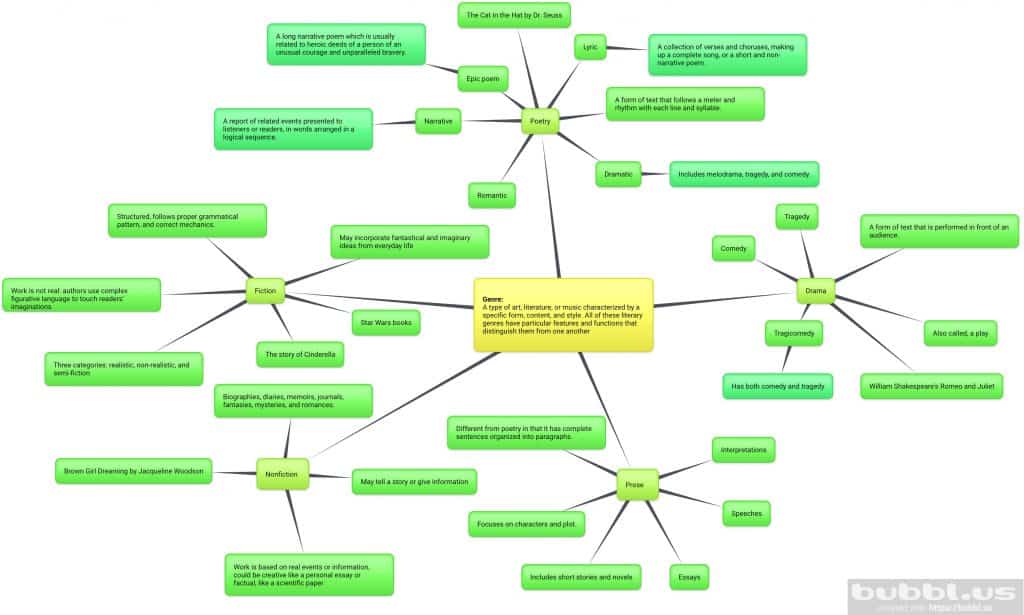
When looking at the different apps to use, I wanted to try and compare two with distinctly different styles and features. I decided to try out Wakelet because I liked that you can add links to websites and videos instead of just writing down information. On the other hand, I liked Bubbl.us because it formed the information into a mind map that I could control the structure of. I found both apps fairly easy to navigate and enjoyed the features of each one. It is hard to choose which app I preferred as they are so different from each other, but I would have to say that I enjoyed using Wakelet more than Bubbl.us. Having worked with younger elementary students, (and probably working with them in the future) I think that the use of visuals, including pictures and videos, is very important when teaching to those younger students. I also think Wakelet was just more fun to use and had a lot more variety for what you can create. In the future, I could see myself using Wakelet with younger grades to teach any lesson, especially a literary genre lesson, and may even use it to have students create their own projects.
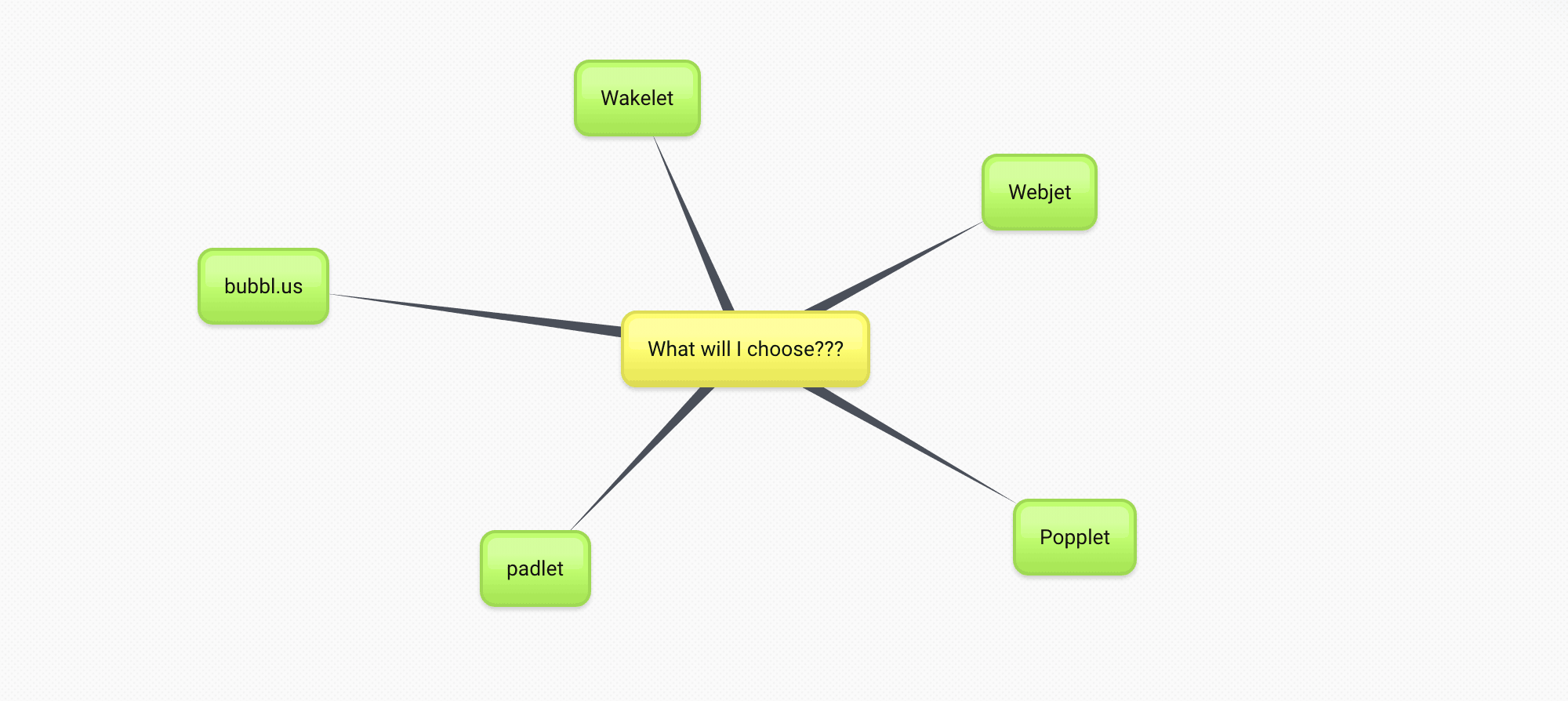
When looking at the apps I just compared them with some basics. I was looking at how they were to navigate, I also looked at how the the app looked (new and polished) and then what was offered in the free account. I ended up liking and can see myself using two of the apps. The two apps I would use are Bubbl.us and Padlet. I can see myself using Bubbl.us for a writing workshop. I tried to use both apps for the same reason which was talking about locations but I do not think that Bubbl.us would be good to use for this activity. I do think it could help students make a prewriting web with it or for me to make one as an example. However, I think it looks outdated. I wasn’t able to use Popplet because it needed to be used on an iPad or downloaded on a computer but it looks like it is similar to Bubbl.us so maybe it’s more updated.
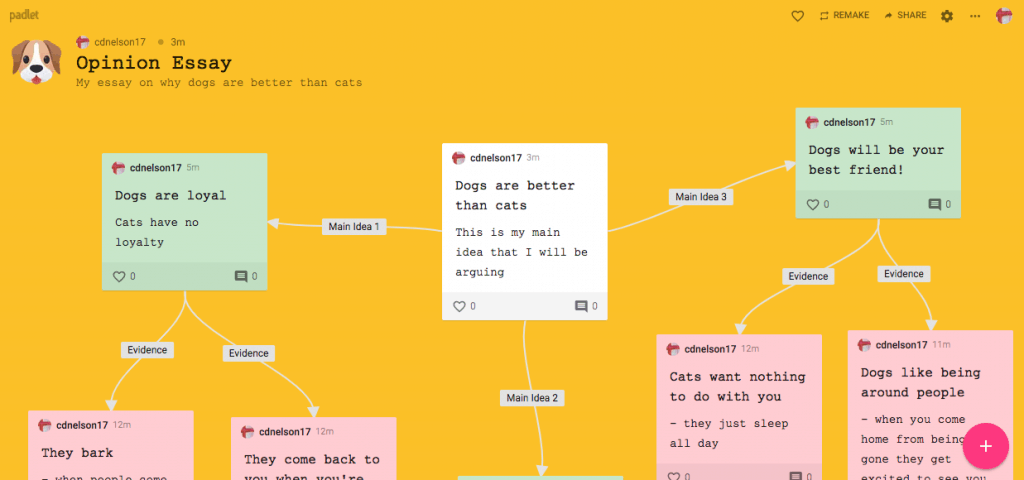
Bubbl.us is not as new and polished at Padlet. I made a map on Padlet and liked all of the options I had from different maps to how you can add pictures from online. I also like all of the Padlet form options you can use. I definitely think this app could be great to use in the classroom. However, you have a limit on how many Padlets you can use with your free account. I would used Padlet for a lot of things. I think this could be a great app to explore the world and to practice the Capitals. It would give a visual of all the capitals and then the pictures could also help students remember the capitals.
I created this lesson on Edpuzzle for my third-grade class as a supplemental/distance learning resource. One of the third-grade science standards (3-LS3-1) is to identify and define hereditary traits and where they come from. I thought that using Edpuzzle was a great way to implement already created content in and out of the classroom. I can definitely see myself using this in my class in the future, and I’m confident in my ability to navigate the application.
With Book Creator, I made a rough version of a book that I would share with my students and their families at the beginning of the school year. It includes information about myself, the students in the class, and what they will need in order to prepare for class. I will also add more resources that parents and students could refer to throughout the year. I wanted to make the book almost like a website that will always be accessible to them. I might even make a book for the end of the year to show the families everything that they have accomplished over the year.
The use of Book Creator was easy to use and customizable. I used the cartoon feature to get even more options for the book. I was able to customize the page color, font color and size, and then add images and links. I didn’t try this feature in this book but I saw that you are able to record your voice on specific pages or all the pages. That could be useful for helping students understand how to pronounce certain words.
Overall, I really enjoyed making a book with Book Creator and will definitely like to make another book in the near future. I think it’s a great way to promote reading/ the idea of books in a different but maybe subtle way.
I used both Bubbl.us and Padlet to create different types of mind maps. I wanted to test the different features by keeping the lesson idea the same. I liked that on Padlet, it gives 8 different templates to start, which I thought would be great depending on what will be taught. I decided to use the shelf template that allowed me to stack all the information into different columns. The other templates seem like another easy way to display information, like the map and timeline template. I liked the ease and simplicity of this website.
For the Bubbl. us, the mind mapping tool seemed much more complex and allowed for more personalization by the user. This application is to replicate the traditional mind maps that teachers may already use in the classroom. The website allowed you to choose the different colors, sizes, and location for each text box, which is nice to organize your thoughts. The upgraded version gives other features that may be useful in the future, but the free version seemed to provide just enough to sample their website.
Personally, I found Padlet much easier to use and I liked how it gave me other options to display information for students. If anything, I think students would also be able to use this website with some guidance. I liked that you can still personalize your padlet without being overwhelmed. In addition, Padlet has an overall better aesthetic and looks much more modern than Bubbl.us.
We compared Padlet and Bubbl.us as tools for mind-mapping. In general, Padlet is very user friendly. Padlet has a variety of templates to start your mind map from, in addition to a blank page, so you can organize your thoughts in your own creative way. Padlet has a collaborative feature where you can add people and they can leave comments and their own post it notes on the Padlet. This could be beneficial for distance learning. Bubbl.us is also user friendly and provides a collaborative feature (however, you have to pay for this feature). It is easy to create and add to your mind map and has keyboard shortcuts and the option to undo/redo.
We prefer Bubbl.us because we feel that it is easier to stay organized in a less cluttered fashion. The free version of Bubbl.us allows you to sort your mind maps into different folders after they have been created. Padlet also has this feature but you have to pay for it. As you add more content, Padlet grows in length; whereas with Bubbl.us, you can add content in multiple directions. This is a personal preference because both us like to organize our thoughts in a non-vertical way. Bubbl.us could be provided to students as a note-taking tool, specifically in history classes where it can often be hard to see how all the events connect. Bubbl.us allows you to connect any two bubbles together which would be helpful in seeing the complex connections of historical events.
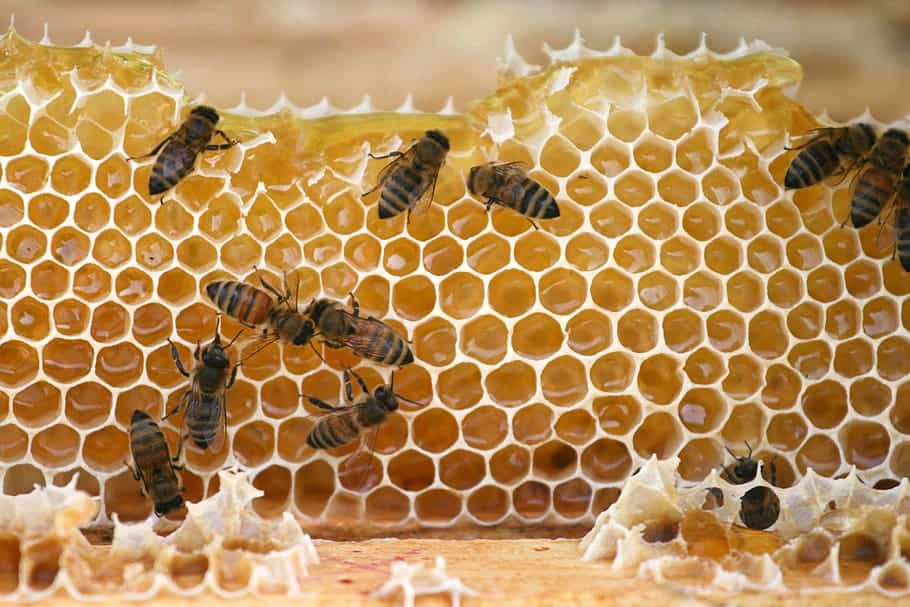
For this assignment, I created a Edpuzzle exploring honeybees and honeycombs for my 7th grade students. This video gives a real world application of geometry because the honey bees create a hexagonal shape within their honeycombs. This lesson could also be combined with a science class so students could see connections between subjects.
I really enjoyed using Padlet, out of the two I tried, it was the winner. Its platform is very easy to use and I didn’t run into any user errors. I like how it allows you to search for different things within the app —images, websites, videos, gifs, etc. Padlet also is very visually appealing and friendly, it allows for everything to be in the users sight. It was also very easy to get an embed code and share it on to this site. If I were to use this app with my class I could use it to have them create a ‘get to know me‘ board at the beginning of the year that included an array of different modes to demonstrate who they are and what they like.
This was what I made with Wakelet, I don’t know if it was just not compatible with my device but it was not working. I tried it on both Safari and google and it said that my browser wasn’t supported. When trying to get the embed code for this it was not producing me with one —even though there was a button that allowed for it. I feel like this could be a great app to use for the right individual but it wasn’t for me.