Ms. Ellie’s Storytime

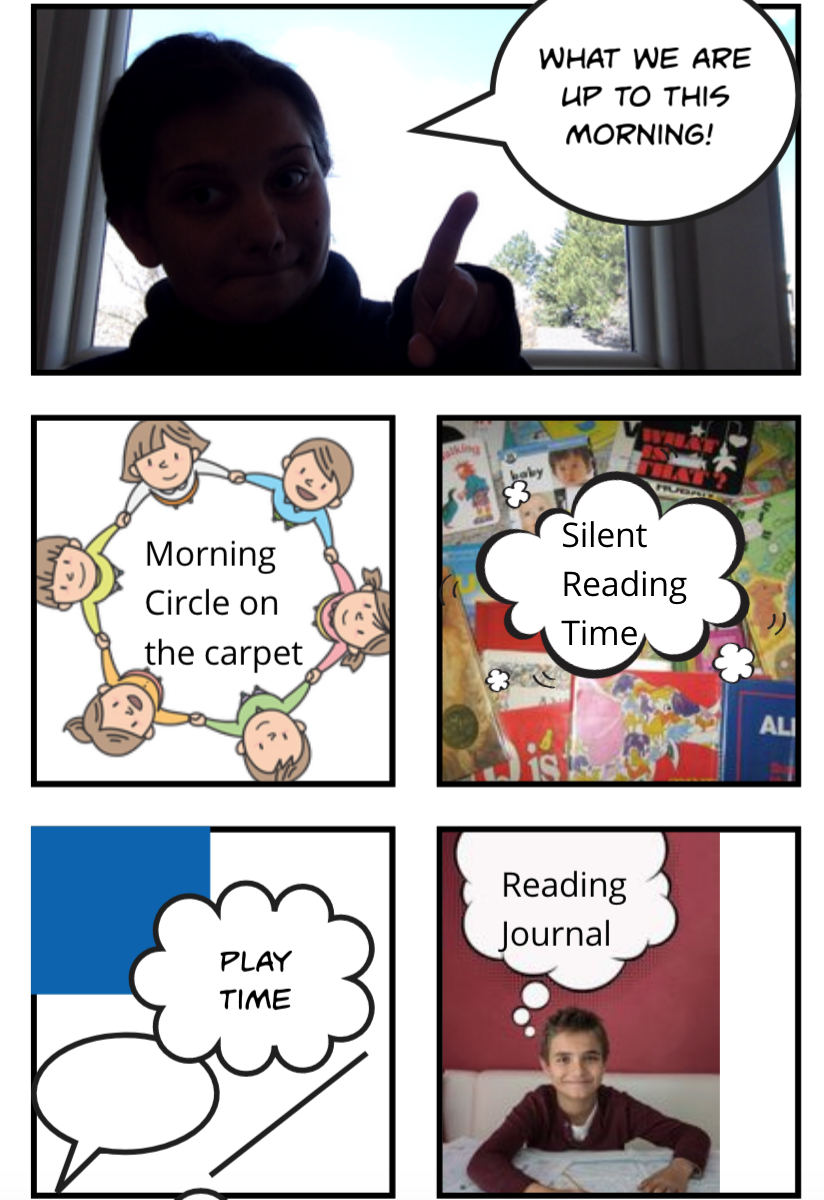
This creation would be used almost as schedule a teacher would have on the board. These pages would guide the students through the things we would be doing until lunch. I like this app because it could be applicable for all subjects but I like that it added another layer while we did silent reading and then reading journals because the format is a book. This would be multiple lessons as we are completing our routine before lunch. This book would be meant to help guide students with what to be looking at as they silently read and do their reading journals. I also like that I was able to use images to match my writing to give my students visuals. I especially like the visuals and thought bubbles to help guide my students while they are working in their reading journals. This will also serve as another way for the students to access what I was working on with them or what I would maybe say if I am not able to help them because I am working with another student. I also like this for students to access if they are sick or on vacation and they want to know what they are missing.

The Butterfly Lifecycle Book

This lesson is for younger students, kindergarten through second grade. I used Book Creator to create a book about the lifecycle of butterflies. If I was doing this for an actual lesson i would have students make their own Butterfly Book and have them put in projects we have been working on related to butterflies. I really liked using this tool to create a book for students, it was easy and fun to use!

Featured Image by Jondolar Schnurr on Pixabay

Changing Seasons

This lesson is geared towards second grade students. A book on Book Creator would be the ending formal assessment in an lesson about writing informational pieces. This book is supposed to serve as an example for how students can organize their books. Students will have already been planning and writing their pieces previous to making their book on Book Creator. After they have finished writing their final draft on paper; then students will get the opportunity to create their own book.

I believe that students will really enjoy creating their final informational piece on Book Creator because it allows them to be creative when creating the final outcome of their piece. Also, the use of Book Creator can enable students to connect their writing to their own pictures, that they took themselves or from home, and can make the learning process more meaningful to them.

Comparing Apps

internet domain names

For this assignment I compared the apps Padlet and Bubbl.us by creating a timeline and web to give an introduction to the five W’s. Using Padlet i chose the the timeline feature to show which ones come first, second, etc. I think this app was very easy to use overall. I liked how the timeline was right there and you could just type in what you needed to say. Everything in this app was very user friendly! The other app I used was Bubbl.us overall I liked this app as well and was relatively easy to use. I liked how when using the web there was different formats to use. It was a bit harder to navigate the text but still was not too bad. I like how the web has different colors and texts to use to personalize it a bit more. It was easy to share the embed code which was nice! Both of these apps proved to be useful and easy to use, i can see myself using both in the future.

Made with Padlet

Comparison of Padlet and Webjets

For this assignment, I explored both Padlet, and Webjets. These online resources are a great way for students to brainstorm and organize ideas. For this lesson, students will use technology to write a recipe including the materials and ingredients needed, as well as procedures of how to make the meal. This lesson was intended for students in second grade.

Standards include: CCSS.ELA-LITERACY.W.2.2 Write informative/explanatory texts in which they introduce a topic, use facts and definitions to develop points, and provide a concluding statement or section.

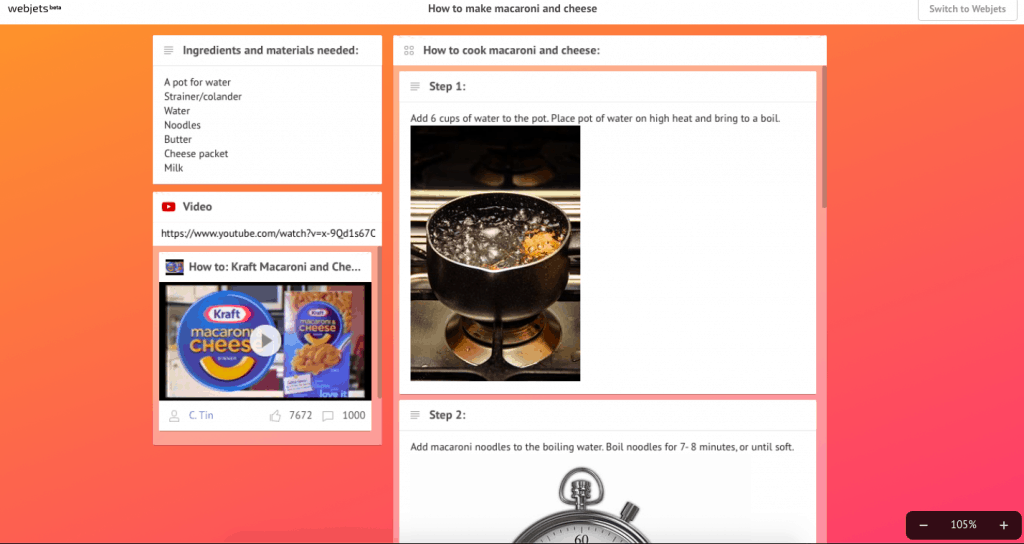
In terms of ease of use, I did feel that Padlet was an easier website to navigate as a first time user. I feel that Padlet was a more interactive website and would be easier for students to use as well. I also really liked the feature that allows you to choose a template. Padlet offers templates including timelines, maps, a stream line of content, a grid, and many more. On the other hand, I did enjoy that while using Webjets, you can customize the wall with anything you like. Adding things to a wall in Webjets is quick and easy as you can drag and drop photos, youtube videos, bookmarks, and more! However, my favorite thing about both resources is the organization and customization of projects for students to map ideas.

Both of these resources worked great for planning the recipe lesson and producing examples below:

Made with Padlet

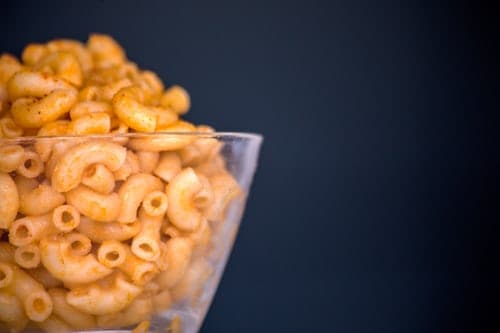
Click this link or image below to see ‘How to make macaroni and cheese’ Webjets project

Featured Image by: Hermes Rivera @Hermez777

Penguin Edpuzzle

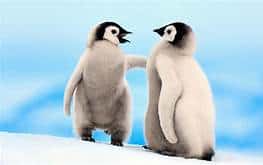
This lesson on penguins could be used for grades 1-4. This would be used as a brief introduction to penguins, with lessons following being more in depth and detailed. I think that this lesson does a good job of giving simple details and examples. The questions asked are mostly to make sure students are engaged, and comprehending the information being shared.

All About Anywhere

girl with a map that has "anywhere" written across it

I am absolutely obsessed with Book Creator! It is such a valuable teaching tool that I could see myself using with just about any age group. I did my example book as a report about the state of California to fit 2nd grade ELA standards, but the possibilities for this app are endless. It could be a great way for students to submit fun reports, do presentations as you can record over the pages, create a memory book, or document a science experiment. You can even turn on the function to collaborate in the app! Younger kids would be able to insert images and use limited text, while older kids could type as much as they need to. It is super user friendly; I really like how it’s equipped with a google image search for public domain images already set up. This is my favorite tool we have worked with so far and I look forward to using it with my future classes.

Featured Image by denkendewolke from Pixabay

Why are Giraffes so tall?

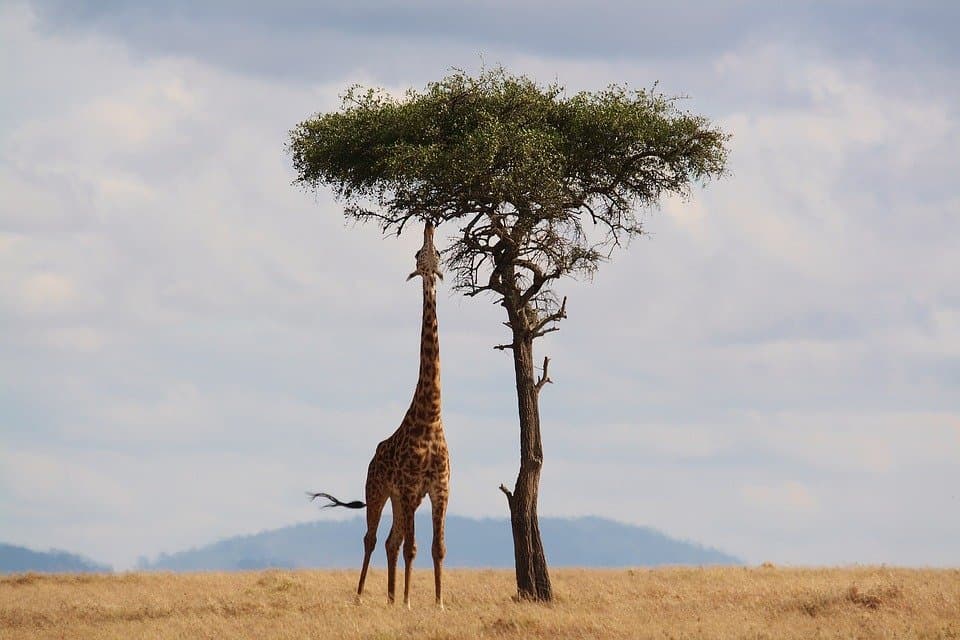
For this lesson, I have created a simple Edpuzzle that includes National Geographic’s “Giraffes 101” video. This lesson was created as a technology resource for 1st – 3rd grade students. Perhaps this lesson could be added to a collection of lessons about animals. Students could then access that collection during free choice time, research, or even during a lesson.

I really enjoyed using Edpuzzle to create this lesson. I like the idea of being able to take a preexisting video and tailoring it to meet the needs of the lesson or students in the classroom. Edpuzzle made a simple video interactive and engaging for students as questions are asked along the way and the narration can vary. I also liked the feature that allows you to cut out content. I think Edpuzzle definitely a useful tool for elementary teachers!

Featured Image By: HowardWilks

Beauty and the What?

open old book on stone wall

For my final project, I created a lesson using Google Sites. This lesson is for second grade and has students compare and contrast fairytales by specifically looking at the character of the beast. It addresses the following two standards: 

CCSS.ELA-LITERACY.RL.2.7

Use information gained from the illustrations and words in a print or digital text to demonstrate understanding of its characters, setting, or plot.

CCSS.ELA-LITERACY.RL.2.9

Compare and contrast two or more versions of the same story (e.g., Cinderella stories) by different authors or from different cultures.

The use of technology in this lesson enhances the learning goals by providing a space for students to visually compare and contrast animals that are seen as “beasts.” Simply saying the word “beast” or “serpent” will conjure a different image for different students based on their experiences and the context that they have heard those terms used in. By searching each of those words and sharing the images I found, the class has a visual common ground to discuss from. Whether they might classify those animals as beasts or not, seeing that someone linked the concept of “beast” to that animal can provide space for discussion and learning about other people’s understandings and how that might influence the creation of a character in a fairytale. 

I chose to use Google Sites as my platform for this lesson because it allowed for the necessary content to be organized. All the necessary resources and instructions for teaching this lesson can be found on the website. The website itself is designed as the lesson and the lesson plan with everything the teacher needs visible on the website or accessible via hyperlinks and embedded video. I created this website with the idea that I would teach with it and use the website as an instructional aid. However, this website could easily be transformed into an online learning experience for students to complete at home should there be inclement weather conditions or if I were teaching right now in this time of quarantine. The use of Google Sites also made it very easy to link my additional resources (websites, Google Docs, Google Slides, and EdPuzzle). In addition to the practicality of Google Sites, incorporating Google Slides as an additional technology piece allows for a fun and different way for students to be creative in designing a creature to play the “beast” in their own version of the story. At the same time, I would leave open the option to draw their beast by hand (and then I would help them upload a picture) so that my students can create and share their beast character in the way best suited to them!

One Sentence Storybook

fantasy book image

One of my favorite lessons from my own second grade experience was writing my own fairy tale in a unit on genres of literature. I designed my Book Creator lesson with this unit, or a future unit that I could teach on fairy tales, in mind! This lesson is designed for second graders, and would serve as a chance for students to apply their knowledge of the beginning, middle, and end of a story (background/ rising action, climax, falling action/resolution). The students would be broken up into 3 groups – one group to write the beginning, one group to write the middle, and one group to write the end. Each student in each group would have a chance to write their own sentence that appropriately sets up the next sentence, showing them the importance of sequencing in a story and how every idea needs to work to further the next. Alternatively, since the students are in groups, it could also be that each group generates a certain number of sentences together, as opposed to each student writing one sentence. The students would then get to create their own pages in the book, on Book Creator, and at the end, there would be a class fairy tale. The book linked below should serve as a model – where I did everything in this case, students would get to create the entire thing themselves!

I enjoyed using book creator and thought it was very user friendly! I think second graders could be comfortable using it as a tool, perhaps with some of the more foundational elements like the background of the page or text boxes already set up for them to fill in. I can see this serving so many different purposes in the classroom and think it is an extremely valuable tool.

Featured Image by DarkWorkX from Pixabay

What’s better – Padlet or Wakelet?

The criteria I used for this assignment included:
1. Ease of usability (how easy would it be for students to learn and use this program)
2. Customizability (how much can students customize and be creative with this program)
3. Accessibility (how accessible is this program, i.e. do students need to create an account, do students need to download an app, is it free?)

I really liked using Padlet for this assignment! I thought it was really fun and easy to use for students. I liked how there were multiple options of what students can create, such as a wall of posts, a shelf of information, a timeline and a world map. I really liked how much students could customize their work and be creative in choosing which setting would work best for their ideas. For example, I liked using a shelf organization method to compare the different representations of the seasons, however, a student could have used the canvas or wall organization method. This app was also very accessible and free, and students just had to sign up with an email address. I tried out Wakelet to create my collection, however, I liked Padlet better because I thought it was easier to use and had more options.I chose to create a shelf about different ways to represent the four seasons.

Overall, I think both of these resources would be great for students to use. I would love to have students create mood boards for characters in a book or create boards that would represent themselves and their interests.

What’s Your Dream?

Written words "dream big"

One of the writing standards for second grade (CCSS.ELA-Literacy.W.2.1) requires that students write an opinion piece in which they introduce their opinion, support their opinion with reasons, and provide a concluding statement. Rather than having them write a paragraph or essay, I think it would be fun for them to work toward this standard by writing a book about one of their dreams! Whether it’s their dream job or a fun experience they dream about having or their dream to be on a sports team or whatever dream they decide they want to share, they would share that dream by making a book. They would introduce their dream (opinion), then talk about why they have that dream or what inspired them, and finally conclude their book with a final statement about their dream (opinion). I would use this activity toward the start of the school year we can all learn a little more about one another and grow in our class community! I created the following example about my own dream to be a teacher that I would share with my students.

Featured Image by Randy Tarampi on Unsplash