Edpuzzle Review

Edpuzzle is a fantastic idea for the classroom. There are so many ways this video lesson can be used in the classroom by teachers and students. Edpuzzle offers an interactive experience that will engage the students in what they are learning. There are multiple features that an be added to any video a teacher or students is sharing. There is an option to narrate or add audio notes at any point of the video which will help students with extra information on top of the video for clarification. Videos can also be cut to keep students interested for the right amount of time. My favorite feature is the opportunity to place questions at any moment in the video. The video will pause and then a question will appear. This keeps students accountable for doing their work.

Here is my video. I would definitely use Edpuzzle in my future classroom!

Edpuzzle

Edpuzzle is a fun way for teachers to make video lessons for their students. Teachers can find educational videos on Edpuzzle or make their own, and then edit them on this website. Edpuzzle first allows you to trim the video down in order to make it shorter and eliminate unnecessary clips. Then, you can either add an audio track over the whole video, or just audio notes during certain parts of the video. I did not do this because my video is a song. Finally, Edpuzzle allows you to insert quiz questions at the end of your video for students to answer. Once you have finished editing, you can select which class must watch the video, disable the option for them to skip the video, and add the due date. This is a great resource to use to create at-home practice work for your students. I definitely think I will use Edpuzzle in the future!!

Here is my video:

It’s All About Density – Oil and Water

This science lesson was created using EdPuzzle which is a  website that allows you to pick a video, add audio recording, and insert quizzes to check student understanding. For my particular lesson, i chose a video about density because it was humorous to watch yet informative. My fourth graders in my field experience class would love this video because it does not just have content, but it also has an animated character who gets into a lot of trouble. This engaging animation helps students connect with the video because they aren’t sure what the character will do next. In the process of being engaged, they will gain new vocabulary and will be checked through the added media.

This gives students a picture of what density is and how simple objects in their environment are more dense than others. For this video below, you will notice I used a combination of quizzes spread throughout and audio recording. In my personal opinion, I liked this combination, because it adds the teachers’ voice into the video rather than having the teacher pause. Since it is integrated into the lesson, the students may think it’s apart of the video and be more likely to listen.  For future lessons, I intend to use this program as it is easy to use, contains multiple ways to check student understanding, and can be shared easily.

Lesson Planning Just Got A Little More Fun

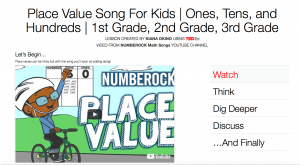
This place value lesson was created on TED-ED and was made for 1st-3rd graders. Place value can be an extremely difficult concept to master especially when students are provided with only blocks, pencils and paper to help them. This place value song is catchy and offers visuals and fun word problems to help students connect to the content. After students watch the video they are given multiple choice questions that work as a brief online formative assessment to check for understanding. Students may also visit the Khan Academy link for more assistance and practice problems to help drive home this concept. Finally students can participate in an online discussion and can work through the challenge problem as a class. This is a great way to encourage parents and their child to engage in the content material at home. I will certainly be using TED-Ed in the future!

Using TED Ed to Make Lessons

TED Ed is a rather nice way to create video-based lesson, as it provides and easy to pick up framework for doing so. The system provides users with a method to add questions, discussions, an comments of your own surrounding any youtube video you wish. When released to your students (who either enter their own names or can create an account of their own), you can track their responses to questions, their additions to discussions, and direct them to hints when they make incorrect answers. You can view my lesson here.

The TED Ed system is really quite great, aside from the bugs that plague it. I experienced issues updating the correct answers to questions and embedding links that could not be solved except perhaps by redoing the entire lesson from scratch. While these bugs aren’t bad enough to make the app unusable, they’re definitely something to keep in mind.


Adobe Spark Video Review

We divided up in class last week to explore Adobe Spark, Toontastic, and Clips. The app I played around on was Adobe Spark. Adobe Spark is similar to powerpoint. You can add videos or pictures to each of your slides, based on different predetermined themes. After you add pictures, there is also the option to choose music to record in the background and different page layouts. You can choose text shape, font, and color as well.  I made my own Adobe Spark slide as well based on the theme, “Summer Activities.” My slides included a beach and carousel ride. When you have finished your slides, you have the option to preview it before you share.

Video review

I worked with the adobe spark video app and here are some of the pros and cons I found from navigating the app:

Pros:

There is not a lot extra options for people to play with so this would be a really good app for people who are just learning how to use a video presentation app. There is also a section to find free photos that you don’t have to worry about copyrights. You are also able to add some background music that they have also supplied and it is categorized by genre which also don’t have to worry about copyrights with or you can upload your own. You are also able to add characters similar to an emoji  but with only black coloring. You are also able to overlay your own voice into the slides very easily to individual parts. There are also templates that you can choose from to help start your project and give some ideas or you can start from scratch and make whatever you want. You can take your own pictures in the app as well and then add them straight into your presentation as well. What is really nice if that you can use this on a phone, tablet or computer and you can access any of your work from any of the devices.

Cons:

This app is very limiting on creativity. There are only a few themes/fonts that you can use when you are writing which can be frustrating if you are looking for a certain look.  The free music and photos are limiting if you are looking for something specific. The app is harder to find some of the features than if you were using a computer. There is also a limit of 10 seconds per page (which some people may find to be a pro) and a limit of 1 character or piece of writing that you can use per slide. I also could not find a way to shrink my writing or move it around unless you change the layout but that was still limiting. You are unable to take videos in the app like you can with the pictures, they must already be on the device you are using. There are also not free videos that you can use which I find interesting since it is advertised as a video app.

Overall I think that it is a good app but it is limiting on what you can add and how creative you can get with the information on each slide.

Use Cases for Clips, Toontastic, and Adobe Spark Video

After thoroughly using and reviewing three popular video apps, it became clear that not one of these apps offers a one-size-fits-all solution to video creation in the classroom. Between Clips, Toontastic, and Adobe Spark, each app offers variability in terms of capabilities, simplicity, and functionality. So how can a teacher ever know which app to use for a given project? It may take a few prep-periods to download, test, and determine which app serves your specific purpose. But fear no longer, this concise review will help you choose between these three unique video apps more quickly.

First, let’s look at Clips. Clips is best used to create short, customized videos with spontaneous content developed while using the app. In class, Clips may be used to share short classroom updates and reviews, share fun reactions to class content, and even easily transcribe videos with a speech-to-text function. On the down side, Clips only works on Apple devices with iOS 11 or higher. If your classroom has access to these devices, be sure to use Clips to create fun, short videos with content made in class.

Next we will review Toontastic. Toontastic offers a more structured approach to content creation in the classroom. This app would best fit into an English or Science curriculum where specific story arcs and scientific procedures are important. Student will certainly have to prepare a script prior to recording content for Toontastic. Toontastic is available on the Google Play and Apple App stores, but does not have a desktop client. If you have any tablets in your English or Science class, use this app to give students a structure to express their creative storytelling skills.

Our final app review focuses on Adobe Spark Video. My favorite use of Adobe Spark Video is to create short introduction videos with content that is already online. This could be useful to offer a summary or introduction to a new unit, in allowing students to introduce themselves and their interests, or to support any presentation on a popular topic. The best parts about Adobe Spark Video include its ease of use, the ability to import content from across the web, and the ability to use this software on almost any device. The downside is the lack of creative ability and structure available within the service. Next time you want to make a quick video that focuses on an already well-documented subject – Adobe Spark Video is the platform for you.

What other creative ways can you use each of these services?

Have you used any other video apps that you either liked or disliked?

What role do you see video playing in the classrooms of tomorrow?

Thank for reading and I look forward to hearing your thoughts,
Nick
Toontastic 3D App Review

Toontastic is an app created by Google aimed at young “future authors, directors, musicians, inventors, and anyone else” that want to try their hand at a creative platform for storytelling. There are three options to choose from at the start: short story, classic story, and science report; each coming with a basic outline for children to fill in. For each plot point (ex: beginning, middle, and end), children can choose from the included sets and characters, or design their own. Once they decide on the setting and characters, they are able to tap record, move characters and props around, explore the set, and narrate the story. After, they are given the chance to add the musical score to set the tone of each scene. Once finished, the story pieces are put together in a single video.

The pros of this app are easy to list:

  1. it is available on a slew of devices (iPhone, iPad, iPod Touch, Android, and select Chromebooks)
  2. it is free and without in-app purchases or ads
  3. it is easily exportable and therefor shareable to parents, and
  4. it works offline (slow Wi-Fi cant hold you back!).

The cons that I found with my time working with the app are:

  1. it may give too much freedom of choice – in a classroom setting children may spend too much time on the designing of the characters than on the story itself,
  2. it offers limited settings and characters – would have to make children aware of them before sending them to brainstorm and write-up their story (before even touching the iPads), and
  3. it would take a lot of pre-planning to implement a build-your-own story lesson using this app – from the brainstorming process (given sets and characters), to choosing music, to blocking the characters on set. There would need to be a whole unit given on theater and story creation processes before.

Overall, I found this app to be quite enjoyable and could think of ways that it could be used in my current placement of a  kindergarten class (though it would be mostly teacher led – not giving them full creative powers with it). I can imagine this being less stressful if it needed to be less structured (outside of a classroom), such as used for a family movie night.

https://toontastic.withgoogle.com/

My Review of Toontastic

Last week in EDTech class, we explored three different video making/story-telling applications: Toontastic, Clips, and Adobe Spark Video. I was particularly interested in Toontastic because it involves animation AND story-telling in an easily accessible way. When I was younger, my brothers were avid cartoonists and created hundreds of characters and story-lines. They drew everything out with pencil or pen and colored them to perfection. We cut characters out and played with them, giving each one a personality. It was one of my favorite hobbies as a child and bonding time that I spent with them that I will never forget.

In the modern world that is influenced so strongly by technology, there are new applications that allow for the recreation of what my brothers and I used to do. Essentially, the characters and stories can come to life with voices, song, and animation which can add to the overall experience for creators and viewers. The app “Toontastic” allows for creators to pick their setting, characters, and gives an outline for the story so that the creators can move through the process with a little more structure. I think this app is a wonderful tool for teachers to use to guide students through the story-telling process while allowing them to be creative. Students would definitely need to write a script out first because coming up with the story on the fly was much more difficult that I imaged. The creator also can move the characters around to match their words and build connections and relationships between characters as the story moves along.

I think this app definitely has a place in the classroom and specifically for guiding story-telling and creative activities. Students both young and old could benefit from a creative space to engage their ideas and voices (can also be used with partners or small groups to incorporate many different ideas and voices). Students would need to experiment with the app itself before using it, but stories can be shared easily with the whole class at the end of the day!

Here is a funny video I found of some young boys explaining the app:


<p><a href=”https://vimeo.com/24856399″>Toontastic</a> from <a href=”https://vimeo.com/applesforkids”>Adam Brice</a> on <a href=”https://vimeo.com”>Vimeo</a>.</p>


Review on Toontastic

In class I explored and played around with Toontastic and thought it was a really fun video-making/animation app that students would definitely have fun with. I think this is engaging for students as they get the opportunity to create their stories and then bring them to life with toontastic creating a short visual of their stories which they could then share with their peers. One thing I noticed with this app is that there are so many options to choose from in terms of settings and because you have to record yourself saying the story, you would definitely want to have students create their script before they create their video. Toontastic is also really fun because you can actively move your characters around and can even customize your characters to look more like you or even have your own face.

The thing I notice is that is was very easy to get pulled into your story and bringing it to life that you want to keep building on it or make more stories. This is great because especially for young kids it gives them a purpose or connection between what they are writing and what they can create. I also really enjoy that Toontastic gives you the opportunity to draw your own setting or characters so if you have a student who is super artistic they can create their own instead of using the premade backgrounds or characters. I think that Toontastic could be used in many ways as well, you could have each student make an individual project, you could use it as a partner or group project activity, or you even have the opportunity to create a class story and then make that story come to life in Toontastic.

The only main problem I could see with Toontastic is that there is not an easy way to share it. You must save it to your device first, then share it, and then upload it wherever you want. Granted, this is not that much of a hassle but a little more than some of the other apps we have used in the past but definitely worth it in my opinion!

Toontastic!

Last class, we got to have fun making videos on a variety of different apps including Adobe Spark, Toontastic, and Clips. I chose to mess around making videos on Toontastic, which actually ended up being really fun. I think Toontastic would be great to have students use to make book or science reports. Students get to make their own characters and are given clear instructions as well as information on the different parts of a story or science report. The app is free as well, so if students have access to iPads in the classroom it would be easy and cost efficient for teachers to download. Overall, I think Toontastic is a great tool to use to promote creativity in the classroom.

Here are some videos we made using Toontastic: