Microsoft Educator

Microsoft Educator is a platform for innovative learning and teaching. You can create, publish and access Sway lesson plans. You can request virtual field trips for a large variety of topics based on grade level from places all around the world. You can request Skype lessons, for example a lesson from an author the class has been reading about. As an educator, you can learn about a large variety of topics and strategies to implement in your classroom from professionals on topics such as using Minecraft in the classroom to dyslexia research and new tools. Additionally, your class can become part of a ‘Skype collaboration’ to learn from and work with another class somewhere else in the world.

See the links below for examples!

Virtual field trips

Skype lessons

Skype Collaboration

Lesson Plans ex. Greek and Roman Mythology

Courses (PD-ish) ex.

Minecraft

Dyslexia

The Grotto – Saipan

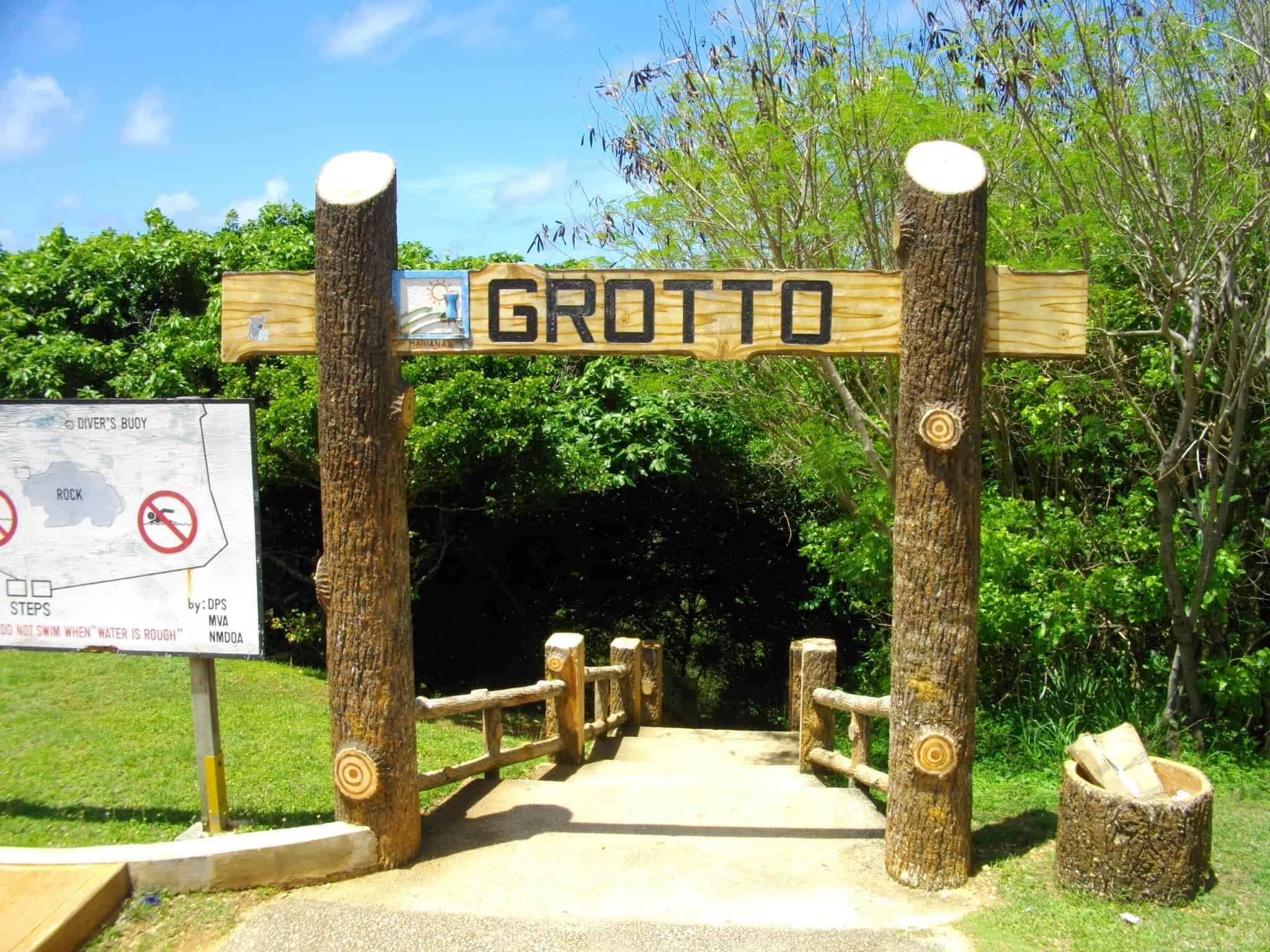
My Thinglink features information, images, and videos of a famous tourist attraction/dive site on Saipan called “The Grotto”. Personally, I have been there over 5 times and it is an exhausting experience. For one thing, you have to hike down 100+ stairs! Another thing is that you have to walk on rocks to get to the jump-off rock and waves are literally going past you as you try to walk to it. There is a rope you can hold onto while swimming, but other than that, you either stay in the water swimming or find a rock to sit on. The hassle of climbing onto the jump-off rock sucks because you have to wait for the waves to pick you up. The struggle to walk up those 100+ stairs while you’re wet is killer too! I mean I love swimming at the Grotto, but it is a workout. I have never gone diving before, but I will someday and will most likely be the Grotto, so I can’t wait for that experience.

Thinglink and Google Tour Creator are great programs to create informational tours of places we have or haven’t seen! But I would use Thinglink in my classroom because it’s easier to navigate and is not so limited when it comes to adding pictures/videos. Basically, you can do so many things with Thinglink and relate it to so many different subjects.

Google Tour Creator

These are some of my favorite places that I have been in Europe! Hopefully one day, I can go back and visit all of these wonderful places! I used the Google Tour Creator for this, and it was pretty simple to use. One thing that I didn’t like was that it has to be a 360 degree photo, which was a little annoying, but overall, I liked using the tool!

Columbia River Gorge

I chose to use Google Tour to showcase a few stops along the Columbia River Gorge. The three places I decided to showcase are the Vista House, Multnomah Falls and The Rowena Crest Trail and Viewpoint. There are several points of interest at each stop.

I chose to use Google Tour because I thought it would work the best for content, but I did have some difficulties. Google Tour can be very limiting because you have to have scenes that Google has good street images of. I found it tricky to find the exact photos with views that I wanted to use. It did seem pretty self-explanatory to use and create a tour though, compared to ThingLink. I thought this was a fun activity, but I think that ThingLink makes more sense to use in a classroom. I think it’s easier for students to use and navigate while learning.

Using Tour Creator

I enjoyed using Tour Creator to create a presentation about the National Parks around the world. I love the 360 degree feature of this program. It enhances the learning experience and shows the extent of the topic and the specific features of each detail. I did find this program to be a bit limiting in terms of what you can post to each slide. Enjoy learning about some of the top National Parks in the world!

Tour Creator

I used Tour Creator to create a quick tour of some places I would like to visit one day. I liked Tour Creator in the sense that you could type in a destination and it would pop up, with it’s surroundings too. You can then add text to different sections of the tour or images.

I think Tour Creator is good however it is limited in a way, as you can only see a limited view of the destination and can only move in limited ways. I think it is a nice first step for students if they needed to search for places around the world and to see how they look.

I didn’t get to play around with ThingLink much but that looks like a great tool for students to use as well. Both tools can be used in a classroom effectively at the discretion of the teacher.

Exploring the Book of Genesis in the Sistine Chapel

I enjoyed using ThingLink! I think there are a variety of uses that this will be useful for. Especially in Science letting kids explore and area or a topic.

For my post, I decided to label the main panels of the Sistine Chapel with the name and the corresponding chapters in the Book of Genesis. This could be a fun activity to expose children religious works of art by breaking down the ceiling of the Sistine Chapel into the individual panels.

Thinglink

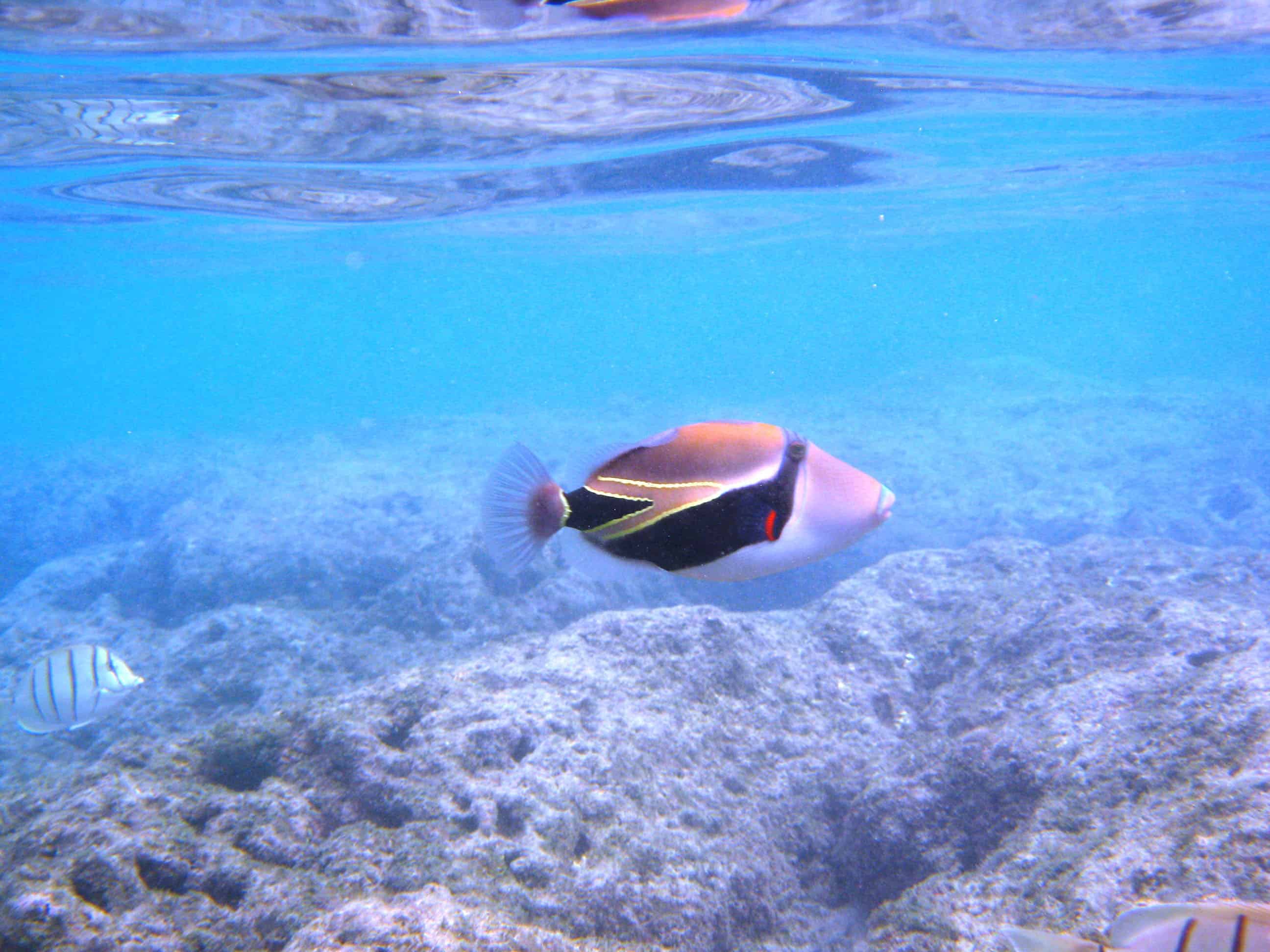
After experimenting with both apps, I learned that I prefer Thinglink over google tour creator. I used Thinglink to learn more about the state fish of Hawaii: Humuhumunukunukuapua’a. I love talking about this fish, so I thought it would be interesting to teach more people about it. In the future, I would use Thinglink to do a diagram of an animal, location, etc. Thinglink is an interactive way to learn about a specific topic, especially by being able to hyperlink videos.

Exploring UP

I decided to make a tour that UP could use to show to incoming freshmen you can not travel all the way to campus. The Google tour creator makes it easy to upload information. The process is simple and self explanatory. I do think google was easier to use, but Thinglink has more options and to add interactive options. Overall, both are good ways to show 3D versions of places in the world. 10/10 would use in a classroom.

Landmarks around the United States

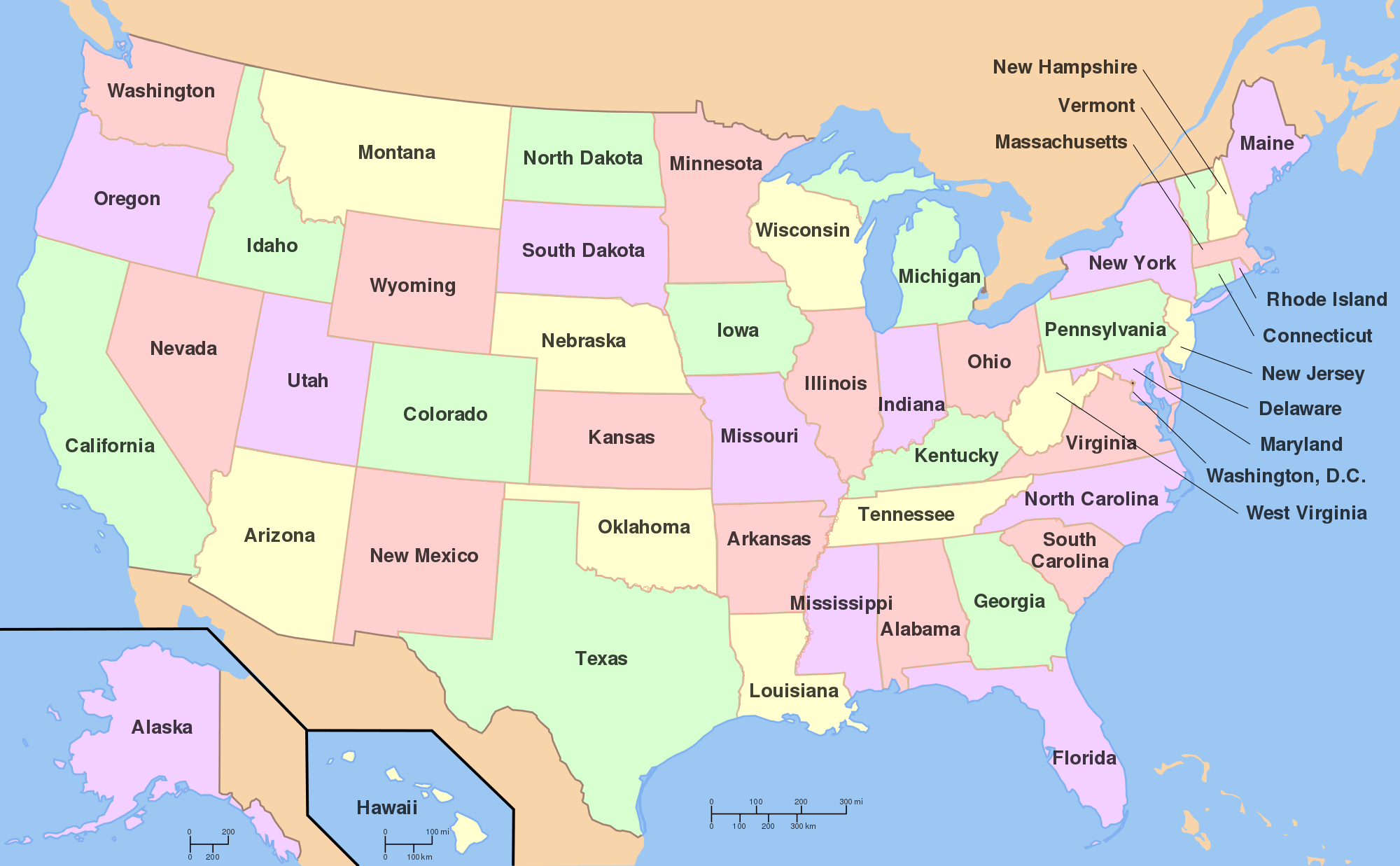
I used Thinglink to create an interactive map on landmarks around the US. I thought that the app was pretty simple to use when it came to adding pictures/dots/information. I think that it is a extremely useful tool if you wanted to do a lesson on a particular subject. Teachers can use it for pretty much any lessons within different subjects such as social studies, science, math, etc. It allows students to be interactive with their learning, which I think will help engage them on the topic at hand.

The other app we explored was Google Tour. I thought that this was also a cool app to use, but it is more limited on what you can use it for. This is because it uses actual locations and its street view. This means that your options are a little more limited compared to Thinglink where you can upload any photos you wish (i.e. animals, landmarks, objects etc.) For a classroom setting, I would recommend Thinglink over Google Tour just because it is more flexible and easier to use.

Tour Creator- Rome

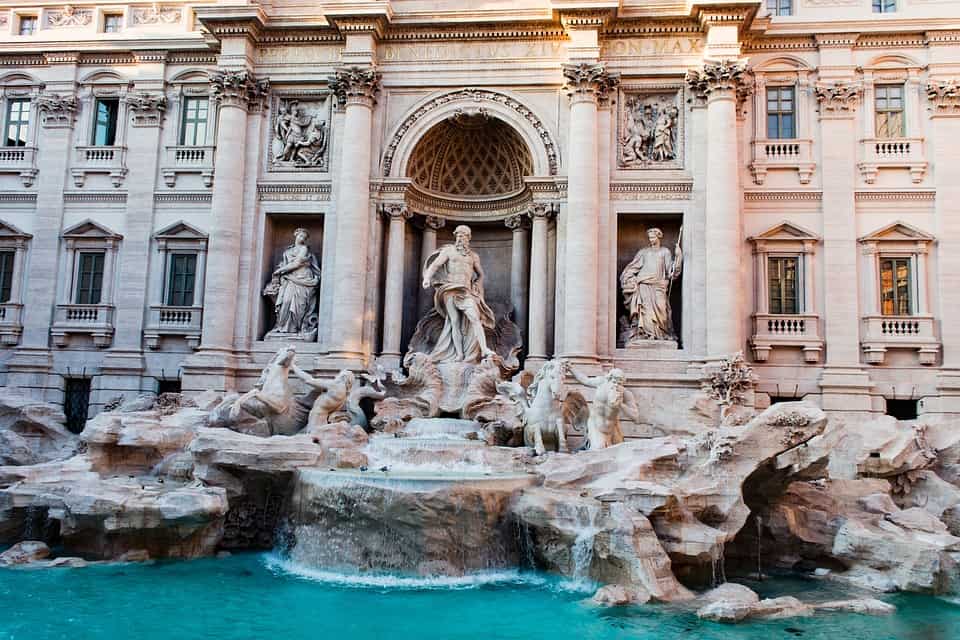
I really enjoyed learning how to use this resource! I thought it was easier to use than ThingLink and enjoyed the 360 views. I could see this being used in a geography or history lesson. It is much more engaging to be able to explore the places rather than just read about them and see a 2-D photo. It certainly captures people’s attention!