Ms.Parker’s Portfolio

Over the course of this semester, I have created a variety of resources using various technology and online platforms. These resources can now serve as use classrooms and as inspiration for myself and teachers everywhere. I’d like to highlight just a few of my favorite resources that I have put together in this course.

Google sites:

This is an example of using google sites as a way to showcase and teach about a topic. I love how this allows for students to be independent and learn at their own pace, while still receiving accurate and easy to understand information.

Book Creator:

Teachers can use book creator to introduce themselves to their students before the school year even starts! This is an example of a book that could be sent out to families and read with students – and it’s all about their kindergarten teacher!

Proxi is a great tool to use with older students. In this lesson example, students get to explore the geographical location of state and national parks in the Pacific Northwest. Later, they can use this information to write a compare and contrast essay comparing National and State Parks!

Hope you enjoy these resources!

Featured Image: Image by Manfred Steger from Pixabay

Resources From the Semester

This semester was filled with a TON of new technology resources that I will be able to use as a future teacher, which is especially helpful. In this post, I am going to highlight some of my favorites as well as what I think might come in most handy when I am student teaching next year and beyond. Using technology in education is especially powerful because it allows for multimodal learning and creates space for more of a growth mindset environment that doesn’t only look at right/wrong answers, but also weighs the creativity of the students.

This one I love, because it is so easy to use and very student friendly! It can be super quick and informal, or super formal, it has a ton of potential!
I liked doing this project because of how much we were able to embed on the slide, and how easy it was to include.
This project worked on book creator, which was also very easy to use and navigate. It is also very manageable to share with students for them to interact with, which is especially great.
I thought this one was especially fun because of how interactive it can be for students to use, and I had fun making this one. Even though there are a ton of details and places pinned on MyMap, it was super quick to create, which is also great when teacher’s already have such little time.
This last one is from the Chat GPT lesson and I just had a ton of fun with this lesson when looking at the AI’s capabilities and what it can do, especially for students. I thought I would include this one so I can remember it as a resource to use in the future!

Miss. Sarah’s Resources

Over the course of the semester, I have been able to utilize the different technologies we have learned about over the course to create some awesome resources that could be used in my classroom in the future! This post will highlight some of my favorite resources that I have made.

This resource has two different google forms that could be useful in the classroom. The first form is a short ELA quiz for 5th grade students to practice conjunctions and verbs. The second form takes students on a choose your own adventure, where they get to explore a new city and learn about some things that make that city unique.
Using book creator, I created a parts of speech book that helps teach 2nd grade students and beyond about the different parts of speech, while incorporating some social studies concepts around the government.
Using Google My Maps I created a map that allows students, specifically 4th graders, to explore the state capitals of the West region of the US. This allows students to learn the capitals while interacting with a map and visualizing where each capital is located.
Finally, this adobe express presentation shares some information about me! This can be shared in the first week of school to help students and parents get to know their teacher better.

Featured Image: Image by Gerd Altmann from Pixabay

Spring Showcase

Hi! My name is Lydia Wanner. I’ve spent this past semester increasing my knowledge of different technological tools that can be incorporated into the classroom. This post highlights some of my favorite projects that I completed this spring.

For this post, we worked in partners to create a lesson using Google Sites. This was my first introduction to the program. For our site, Sophia and I compiled a series of weather-related activities that could be used for teaching science in the primary grades. Google Sites is easy to use and is helpful for keeping information organized.
In this post, I experimented with Google Forms. Although I was already familiar with the program, it has made additions since the last time I used it. In this project, I created a self-assessing form as well as a branching form. I had a lot of fun creating my branching Google Form, which I set up as a “Choose Your Own” adventure to introduce students to new book series. Google Forms is a great tool for the classroom. From simply sending out class surveys to creating an online escape room, it is a versatile tool that is user-friendly.
I had never heard of Book Creator until this semester. In this post, I used Book Creator to make a book about different defensive adaptations that animals used. While making the book, I went a little overboard with how much information I included. One of my favorite things about Book Creator is that you can embed audio onto the pages. For beginning readers or students who need extra support while reading, they can choose to read along with the author. This program is great for making a classroom resource, as a presentation tool for students, and many more possibilities.
Like Google Forms, I was familiar with Google Maps before this course. However, I had never explored the realm of Google MyMaps, nor had I considered incorporating it into a lesson. In this post, I used MyMaps to show the modern-day stops from the Oregon Trail. When it comes to history classes, MyMaps is a great tool for engaging students in stories that happened years ago. Additionally, MyMaps can be used for introducing students to the neighborhood around their school or showing parents the itinerary for a class trip.

I hope you’ve had as much fun looking at my posts as I did making them! As I continue my college journey and beyond, I hope to incorporate the tools that I have experimented with this semester into my teaching practice.

Iliana’s Technology Guide in The Classroom

Throughout this semester I have learned all the fun and engaging ways to integrate technology into lessons to help facilitate students learning. Below are some of my favorite Word Press posts I’ve created this year and how I incorporated technology into them.

This was one of my first posts using Word Press. It was a Kindergarten/ First-grade science lesson on what plants need to grow. It combined letter recognition with a science lesson. In this Word Press post, I practiced using some of their features like the picture comparisons to help scaffold the students in solving for the missing words.
In this lesson, I showed the powerful tool that AI can bring to the classroom and created a lesson solely by promoting Chat GTP with questions. Although we shouldn’t rely on AI for planning an entire lesson from this post I learned ways it can help brainstorm new ideas and come up with test questions that can be used in an end-of-the-unit or lesson formal assessment.
If you are ever looking for a fun way for a student to bring their poetry or writing alive with images. Microsoft SAwy is your tool! It is easy to navigate the signs and can install transform your student’s writing into a slide show of images either using their own personal pictures or pictures provided through their database.
If you are looking for a fun way to make your one book or to showcase student writing Book Creator is the site for you. You and your students have endless opportunities how to decorate the pages of your books by adding colors, words, stickers, and fun images. As a teacher, you can create a library of all your students’ books and can easily send the link to parents to showcase the work that their students have put in to see other students’ work.
This Word Press post highlights different technology sites like google sites, My Maps, Google Slides Presentation, and Google Forms all in conjunction with a lesson on butterfly migration. It shows different ways you could easily incorporate technology to help further your student’s learning. In this post, you can find a My Maps link to different butterfly sanctuaries, a pre-assessment before the lesson, and instructions for a hands-on butterfly stop activity.

Prior to this semester, I was only aware of a handful of technology tools that can be used in the classroom but now after a semester’s worth of activities I can confidently say that I now have knowledge of so many different sites I can now use in the classroom.

Features Image:

Image by Paul from Pixabay

Ms. P’s Masterlist

Hi! My name is Nicole Pagtakhan, but I also go by Ms. P or Ms. Nicole in the classroom.

From my years of experience on the internet, digging through someone’s portfolio of works can be hard, especially when there’s one type of post you want to look at. I’ve learned many different skills throughout this semester, and I’ve learned about which tools might work best for me as I enter the classroom as a new teacher.


Masterlist:

Here’s a quick introduction to me entering the 2nd semester of my senior year, it’s a quick get-to-know-me while experimenting with WordPress for the first time.
I’ve previously taught SEL lessons, but I’ve mainly written them out in Google Slides with the notes section as the “teacher instructions” and the slides being what I present to students. I think having a separate website makes the lesson feel more accessible to both students and teachers, especially if a student is absent and I want them to have something to work on. This is a step-up from my first post about using WordPress for more advanced websites.
AI is a slippery slope in many fields. In education, it can be a tool to generate ideas for students and teachers, but when people copy it word-for-word and take credit for it, it’s creating more avenues for people to not show their creative efforts. It’s overall great for inspiration, but in order to be creative, we must connect to our humanness and our individual ideas. Using AI is super fun, I would highly recommend playing around with it to test the capabilities.
Inspired by my own fieldtrips, this post was about how to use Google Maps in a lesson. I used it to map out different locations for students to walk to in Portland, OR. such as the different bridges and landmarks like Big Pink. Other uses could be for mapping out distance and measuring it without having to leave the school, which would be perfect for a math lesson.
Sway was a mixture of a book and a slideshow, and I felt that it would be a great way to make a “get-to-know-you” book with pretty pictures. Sway has a learning curve, and I felt that it was a little difficult but once you understand how things work, it’s a great way to present information.
I like that you can create books that others can see, and there’s many tools to make different types of great classroom books. I think this one is easier to use than Sway, and even though reading a book online isn’t the same as reading a physical book, you can embed more things into it like audios, YouTube videos, and photos to make the reading more interactive. This is a great tool that I hope to use in my future classes.
Google Forms are very commonly used these days, though this was my first time making one. Google Forms and Ziplet are great ways to give casual formal assessments without making it seem as scary as some other tests, and you can include photos, emojis, scales, and text boxes for students to report information on. Of the two listed, I’d like to use them fairly interchangeably.
I’ve used Google Sites before, but it has never been in this depth before. I thoroughly enjoyed designing the website because it’s much easier. In high school, I took a coding class and always commended people who could code their own websites, but because this is so easy and so personable, it’s a great resource for teachers. As I mentioned before, I think this would be a great place to post lesson plans or newsletters for parents so that they could have access to the materials even if they’re away for a trip or absent due to sickness.
This lesson was about introducing Canva, which is a great tool to making infographics and slideshows. Not only is it aesthetically pretty, but it is a great way for students to get creative with their work, and to show mastery of different skills and knowledge that they’ve learned in class. I use Canva for so many things even now, and I think it’s a great tool that everyone should get the chance to play around with.
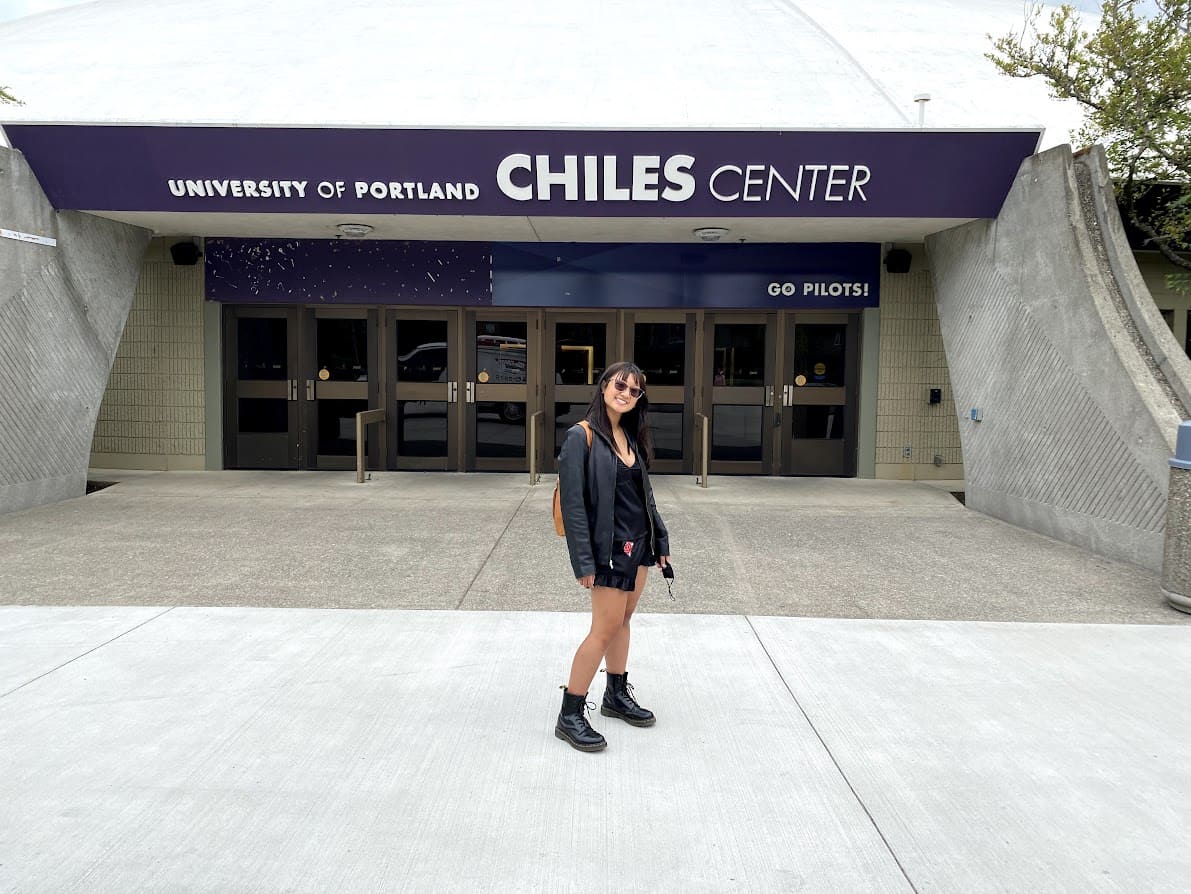
A final post to celebrate my three years with UP. It’s nice to start the term and end the term with a little about myself so that I can look back at how I’ve changed and where I’ve started. Personal growth is something we can all work on and that is always changing.

…And that’s all of my posts! I hope that this gives you a nice overview of all the progress I’ve made, reflections, and inspiration for your future as it has mine!

-Nicole Pagtakhan