Class 4: Teaching With Jamboard

Teaching with Jamboard

Featured image by Gino Crescoli from Pixabay

We will lead off today’s class with a Google tools self assessment. This will help guide our study moving forward.


Class Overview

Activity 1: We will introduce Jamboard with a “Hello My Name Is” activity.

Activity 2: Working with your group – answer the following on our collaborative Jamboard.

  • What does Jamboard do best? 
  • How do you manage use with students?
  • What technical requirements need to be met?

Activity 3: How would you set up and run Jamboard to do the following?

Answer question above – working in groups of two on this Jamboard on the slide that matches your group number. What does teacher do? What do students do?

  1. Brainstorm
  2. Graphic organizer
  3. Showcase student work
  4. Timeline / diagram
  5. Concept (mind) map
  6. Entrance / exit ticket

Activity 4: Jamboard Scavenger Hunt

Working in small teams find at least 5 good examples of how teachers effectively use Jamboard to achieve one of the goals above: Your goals should match your breakout group number. Curate your examples on a Pinterest of your own design and then share the URL with the instructor for posting below.

Jamboard Scavenger Hunt Results

  1. Brainstorm: Georgina, Kasidy, Lannie Board
  1. Graphic organizer: Jack, Jenna  Board
  1. Showcase student work: Chloe, Hailey Board
  1. Timeline / diagram: Kate,Mykaela Board 
  1. Concept (mind) map: Isabella, Marlee Board
  1. Entrance / exit ticket: Elizabeth, Kaelyn Board

Assignment 4: Design a Jamboard Learning Activity | Jamboard lessons 22-A4

Design a Jamboard based lesson as the basis of your next post. Your post should include:

  1. Title and featured image
  2. Context of the activity – see our list #3 above (ex. Brainstorm, etc)
  3. Target student group for lesson – grade level or subject
  4. Instructions for students
  5. Goal for lesson and how the Jamboard help you meet the goal.
  6. Be sure to set the “Sharing” setting of your Jamboard to “anyone on the internet with this link CAN VIEW.”
  7. A screenshot of the Jamboard (Jamboard cannot be embedded into another site)
  8. Use the screenshot with text hyperlink to Jamboard (like I did below)

Class 5: Teacher’s Guide: Google Drawings or Jamboard?

Featured image by Canva

Last week, we explored Google Jamboard. This class will introduce Google Drawings – which can be used as a browser version or as a Chrome plugin. Student will learn Drawings basics and explore examples of how it can be used in the classroom. These are showcased in the introductory Google Drawing below:


Team project: Then students will break into teams to explore Google Drawings independently and consider how it compares to Google Jamboard. Teams will be tasked with designing a teachers’ guide to that compares the two apps from the perspective of their grade level / disciplinary team. Students should check back with our criteria for judging tech tools.

Task: Each team should design a Google Drawing that compares the two apps with a focus on use in your grade level / discipline. Audience / purpose? Other teachers who might consider using either or both apps. Those Drawings will later be embedded in this post.

Grade Level Comparisons Google Drawings or Jamboard?

K-5 | Direct Link

6-8 | Direct Link

9-12 | Direct Link


Assignment 5: Design a Google Draw Lesson | Google Draw Lesson 21-A5

Design a Google Drawings based lesson for your next post. Your post should include:

  1. Title and featured image
  2. Target student group for lesson – grade level or subject
  3. Instructions for students
  4. Goal for lesson and how the Google Drawing helps you meet the goal.
  5. Google Drawings can be embedded in WordPress. See instructions below for how to embed your Drawing in your post.
  6. Include a direct link to your Google Drawing in your post. Use the “Make a Copy” trick.

Resources

How to publish your Google Drawing to the web and get an embed code to use with WordPress’s “Custom HTML” block

Class 4: Teaching With Jamboard

Teaching With Jamboard

Featured image by Canva

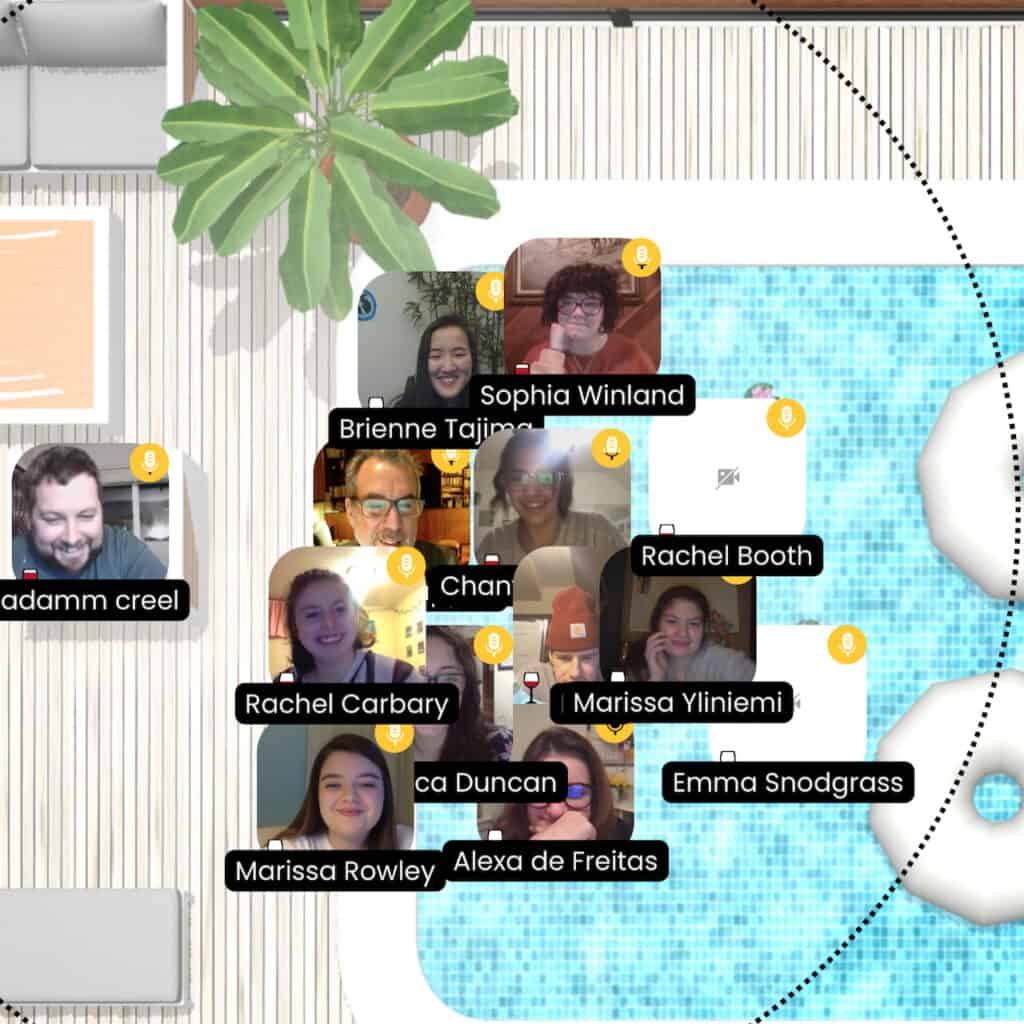
Activity 1: Review our experience using KumoSpace.

How we might use it? And how it fit our criteria for judging edtech tools?

Our working list – criteria for judging a tech tool
Ease of use / set up  Reliability / tech support
Connectivity – among students, with teacher, to other platformsFunctionality – meets our instructional goals. Tools for teachers and students
User experience  – audio, graphics, toolsRequirements – cost, bandwidth, devices, platforms
Ethical considerations / privacyAccessibility for all

Activity 2: Jamboard Overview

Working with your group – answer the following on our collaborative Jamboard.

  • What does Jamboard do best?
  • How do you manage use with students?
  • What technical requirements need to be met?

Activity 3: How would you set up and run Jamboard to do the following?

Answer question above – working in groups of two on this Jamboard on the slide that matches your group number. What does teacher do? What do students do?

  1. Brainstorm
  2. Graphic organizer
  3. Storyboard
  4. Showcase student work
  5. Timeline / diagram
  6. Concept (mind) map
  7. Entrance / exit ticket

Activity 4: Jamboard Scavenger Hunt

Working in a teams find FOUR good examples of how teachers effectively use Jamboard. Share to this Wakelet and be prepared to explain your selection and reasons for choosing with class.


Jamboard Examples


Assignment 4: Design a Jamboard Learning Activity | Jamboard Lesson 21A-4

Design a Jamboard based lesson as the basis of your next post. Your post should include:

  1. Title and featured image
  2. Context of the activity – see our list #3 above (ex. Brainstorm, etc)
  3. Target student group for lesson – grade level or subject
  4. Instructions for students
  5. Goal for lesson and how the Jamboard help you meet the goal.
  6. Be sure to set the “Sharing” setting of your Jamboard to “anyone on the internet with this link CAN VIEW.”
  7. A screenshot of the Jamboard (Jamboard cannot be embedded into another site)
  8. Use the screenshot with text hyperlink to Jamboard (like I did below)

Resources