Class 3: Create Interactive Lessons with Google Slides

Lesson 2: Interactive Lessons with Google slides

We will begin our look at Google tools with Google Slides. Students will work in teams to explore some sample Google slide activities here. 

They will select one of the activities and prepare a short presentation to class on: 

  • How is it designed – features, interactions, navigation, external assets.
  • It’s instructional goals
  • What they liked / disliked about it. For example, ease of use?
  • How it could be modified and used in other learning activities.
ASSIGNMENT 3: DESIGN A LEARNING ACTIVITY WITH GOOGLE SLIDES | Slides 20-A3

Working alone, or in a team of two, students will design a learning activity using Google slides. They will embed the slide activity in a blog post that describes

  • Target student audience
  • Lesson goals
  • How you would use it with students
RESOURCES for adding your Google slide show to WordPRess post
Step 1: Set up sharing and get an embed code to use on WordPress.
Step 2: Use HTML Snippets on WordPress with an embed Code

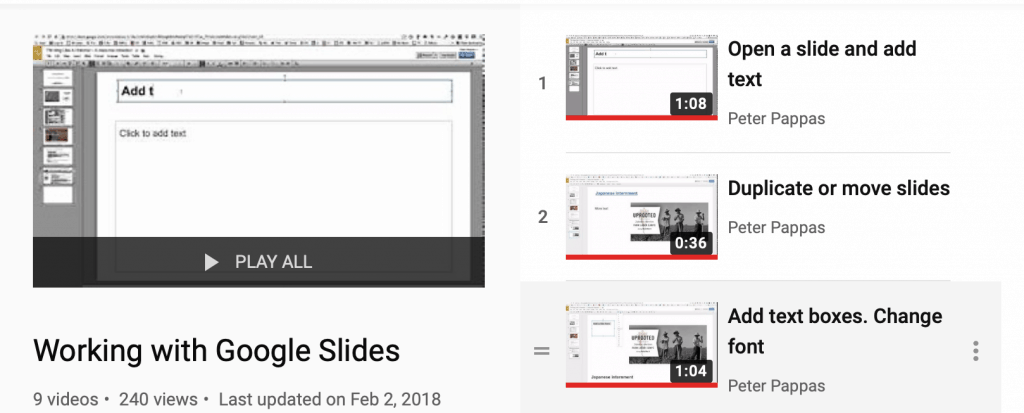
Video guides working with Google Slides
Working with Google Slides

Class 2: Teaching in the Digital Era

Teaching in the digital era

This class will lead off with a  discussion of our first class and assignment. Next, Peter will do a short presentation: “Teaching in the Digital Era” It explores the skills we need to be “digitally literate in the modern world.”

  • Find, decode and critically evaluate information
  • Curate, store and responsibly share information

Teaching in the Digital Era Handout / 5mb PDFDownload

To hone our digital literacy skills, we will explore search techniques with a focus on finding public domain or Creative Commons licensed content. For more information on public domain searches visit our Copyright Free Content page.

ASSIGNMENT 2 | Posts 20-A2

We will use this assignment as a chance to practice our public domain search skills. It will also involve a bit of curation to decide which images to use. More on curation skills.

Students should think of a brief learning activity that involves using at least three images. For example:  vocabulary, pre-reading activity, activate prior knowledge etc. (Don’t worry too much about activity – we’re mastering some WordPress skills) See sample post here.

Use the images in a blog post that serves as a quick guide to how you might use these images in the activity. Be sure to include the images with citations and also have at least one featured image. (Could be one of the images or something different you made with Adobe Spark).

Students should be sure to check that the images used are public domain or creative commons licensed. Include a hyperlink back to creator / source. 

~ good digital hygiene

Insert a hyperlink into a WordPress post


How to add an image or gallery to a WordPress post

Class 1: Tech-Savvy Teacher’s Meme

Here’s the flow of our first class  – a chance to get to know more about the course and try our hand at our first two tech tools.

  1. This our first class  … so … some intro activities.
  2. Peter will offer a  quick demo of AdobeSpark Post –  a great tool for creating striking title slides with public domain content.  See video below for more.
  3. Students will get a quick overview of WordPress and be pointed to our WordPress 5.0 Playlist. Next, students will work in small groups discussing their vision of the tech-savvy teacher. They will be invited to turn those ideas into memes using AdobeSpark Post
  4. While students are working, Peter will get each student logged into our WordPress account.
  5. We’ll have a meme smackdown and reflect on the activity and how the classroom workflow was designed and managed.

ASSIGNMENT 1 / MEMES 20-A1

Task 1: For your first blog post write an elaboration / explanation of your meme. The post is due by midnight Sunday Jan 19th.

Students should be sure their post includes a featured image (meme) made using  AdobeSpark. Use your meme from class or make a new one.

Here’s some post prompts – feel free to use one or more for inspiration.

How the meme reflects …

  • What you’ve learned about edtech in the classroom.
  • The challenges or opportunities of edtech.
  • Where do I want to be in my use of edtech tools in 3 years.

Task 2: Before our Jan 22nd class, comment on at least 2 student posts. It’s a conversation, not simply a … “nice job.”

HOW TO USE ADOBE SPARK POST
HOW TO LOG INTO WORDPRESS
HOW TO WRITE YOUR FIRST WORDPRESS BLOG POST